
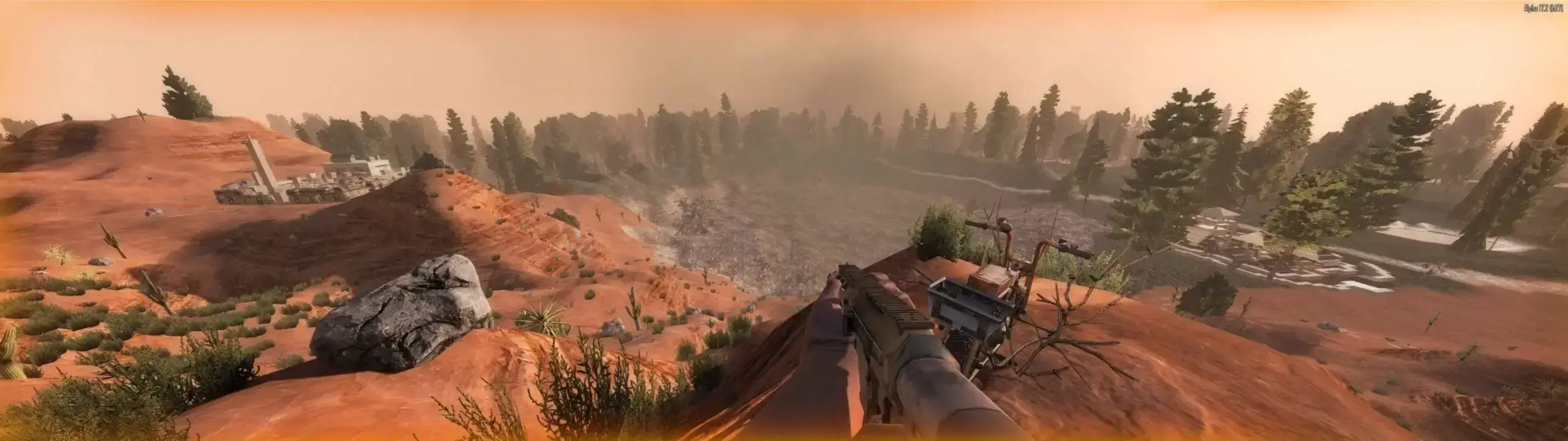
If you're getting tired of the vanilla game, you should try modded 7 Days to Die. It's a great way to experience new things and hopefully, restore the fun!
In this guide, we'll be showing you how to install mods to your server and local game client, as most mods will need to be installed on both in order to play.
Downloading Mods
Mods can be found from sites such as Nexus Mods once downloaded extract the mod file.
Tip
Make sure the mod you're installing is compatible with your 7 Days to Die server version.
Installing Mods on Your Server
Tip
Did you know? You can type version into the server console to see your server version and its loaded mods.
Installing Mods Locally on Your PC
Mods that explicitly say server-sided only will not need to be installed locally, for the rest, here's how. Do note that you may have to disable EAC Anti-Cheat on your game client to use most mods, the steps for that can be found below.
- 1
Navigate to your game files by going to
Steam → Library → 7D2D → Manage → Browse Local Files. - 2
Create a folder named
Mods. - 3
Extract your downloaded mod folder into
/Mods/[ModName].- Not to be confused with a folder sharing the name of an entire modpack, but each mod individually should be /mods/[ModName]. For example, it should look like this.
modsmod1modinfo.xml..mod2modinfo.xml..mod3modinfo.xml..
You only need to install the extracted folder which directly contains modinfo.xml and its other files.
Note
Most mods require EAC (Easy Anti-Cheat) to be disabled on both your server and game client. Follow our disable anti-cheat guide for a quick reference on the process.