
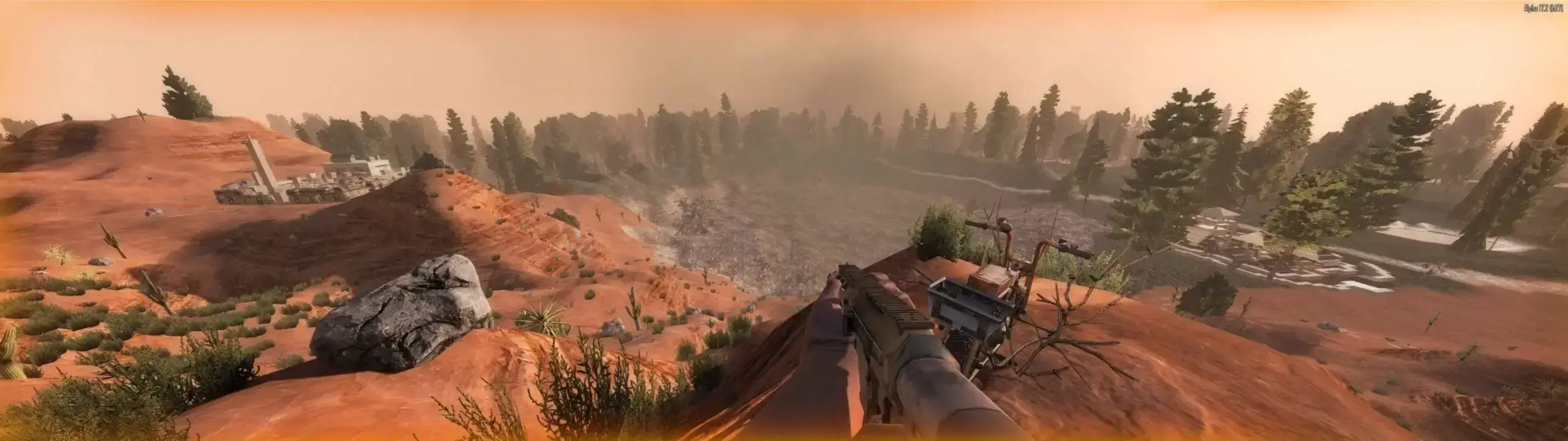
Twitch Integration is an extension for streamers that allows livestream viewers to interact with the streamer's game through chatting or donations with bits.
This comprehensive guide covers how to install the required Twitch extension, how to connect Twitch to your 7 Days to Die server, and much more.
Before proceeding with this guide, ensure that you're an admin on your 7 Days to Die server.
Note
The default permission level required for Twitch Integration is 90.
Installing the 7 Days to Die Twitch Integration Extension
- 1Log in to Twitch and go to your
Creator Dashboard. - 2In the sidebar, go to
Extensionsand search for7 days. - 3Install the
7 Days to Die Integrationextension.
Make sure to select an overlay when installing.
Connecting Twitch Integration to Your 7 Days to Die Server
Again, make sure you're an admin; otherwise, this won't work unless the necessary settings have been changed.
- 1Connect to your 7D2D server.
- 2Press
Escto open the game menu. - 3Select
Options → Twitchand clickLog in Twitch.- A browser will open, automatically redirecting you to a page.
- 4Click
Activatewith the code, and then clickAuthorizeon the next page.
Now you should see Connected: [YourTwitch] in the bottom right of the in-game Twitch menu.
Enabling The Extension As A Viewer
Viewers must give access to the 7D2D Twitch extension in order to be able to use it, luckily it's a simple process, do this as a viewer:
- 1Go to the Twitch Streamers channel.
- 2Hover over the video and click on the 7D2D extension popup.
- 3Scroll down to
Manage Accessand clickGrant.
All Viewer Commands
Here are all of the commands viewers can use for your server as per official documentation which can be found here.
**All commands with an added * need to be enabled. To configure settings, use the in-game Twitch menu by going to Actions → View Extra → Allow Action on specific commands.
Troubleshooting
These are a couple somewhat common issues with 7D2D Twitch Integration and how to fix them.
Connection Timed Out
If you're unable to connect and the steps have been followed properly, try these fixes:
- Check your firewall.
- Disable browser extensions, or try setting a new default browser.
- Restart your PC.
The Twitch Extension Must Be Installed And Active On Your Channel
This means the 7D2D extension hasn't been activated on your twitch channel, do this to activate it:
- Log in to Twitch, go to
Creator Dashboard → Extensions → My Extensions, clickActivate, and select an overlay for the 7 Days to Die Twitch extension.